How to See What's Taking Up Space on Your Mac
· mac disk space analyzer, visualize mac storage, disk usage map, mac storage
Your Mac pops up "Your disk is almost full. Save space by optimizing storage." (older versions of macOS said "Your startup disk is almost full"). Or an update won't install because there isn't enough disk space. You've already emptied the Trash, and the disk is still full. You know something's eating the space, but you can't see what.
To see what's taking up space on your Mac, start with Apple menu > System Settings > General > Storage. You'll get a category breakdown that helps you decide where to look next.
Before you delete anything else, find the files behind that total. An old installer and the only copy of your current project can take up the same amount of space; you'll want to know which one you're looking at.
We'll walk through two ways to find them: first, the built-in Storage settings and Finder, which cost nothing, then a faster way to compare folders using our app, Crufti.
1. Get a quick overview in macOS Storage settings
Storage settings is a good first check when you're not sure whether apps, documents, or something else is filling your Mac. You can review large files in Applications or Documents without installing anything.
The catch is System Data. You get a total, but you can't open that category and browse its files. Documents has a File Browser for exploring folders, though you'll still need to follow their paths to work out what belongs to which app or project.
- Open Apple menu > System Settings > General > Storage.
- Let the storage totals finish calculating, which may take a moment, then read the used and available space at the top.
- Find the largest categories in the breakdown.
- Click the Info button beside Applications or Documents.
- In Documents, inspect Large Files or Downloads and click Size to sort the file list. Use File Browser to explore folder sizes.
- Use Show in Finder to inspect an item at its location.
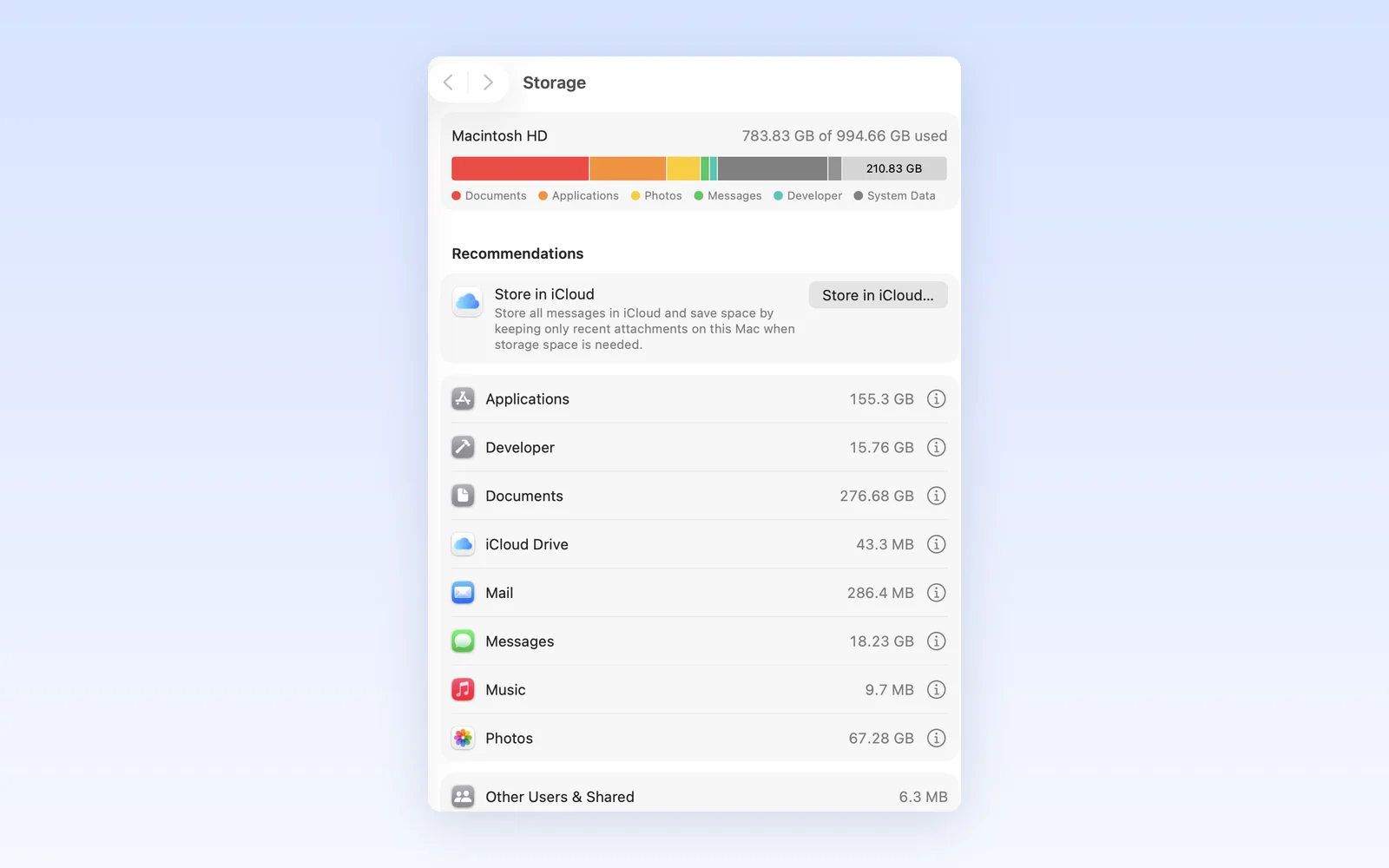
Apple's Storage settings reference covers these controls and explains what each category includes. System Data contains files outside the more specific categories. If that big, unhelpful total is what brought you here, our guide to Mac System Data explains it in more detail.
2. Follow large files and folders in Finder
Once you've found a large file in Storage settings, Finder helps you check what it is and where it lives. You can open its folder, see the full path, and check its size. If you don't have a starting point yet, try Downloads.
- Open the folder and choose List view.
- Click the Size column to put the largest files first; click again if the order is reversed. If the column is missing, Control-click a column heading and enable Size.
- Select a file or folder and press Command-I to open Get Info.
- Turn on View > Show Path Bar to keep its location visible as you browse.
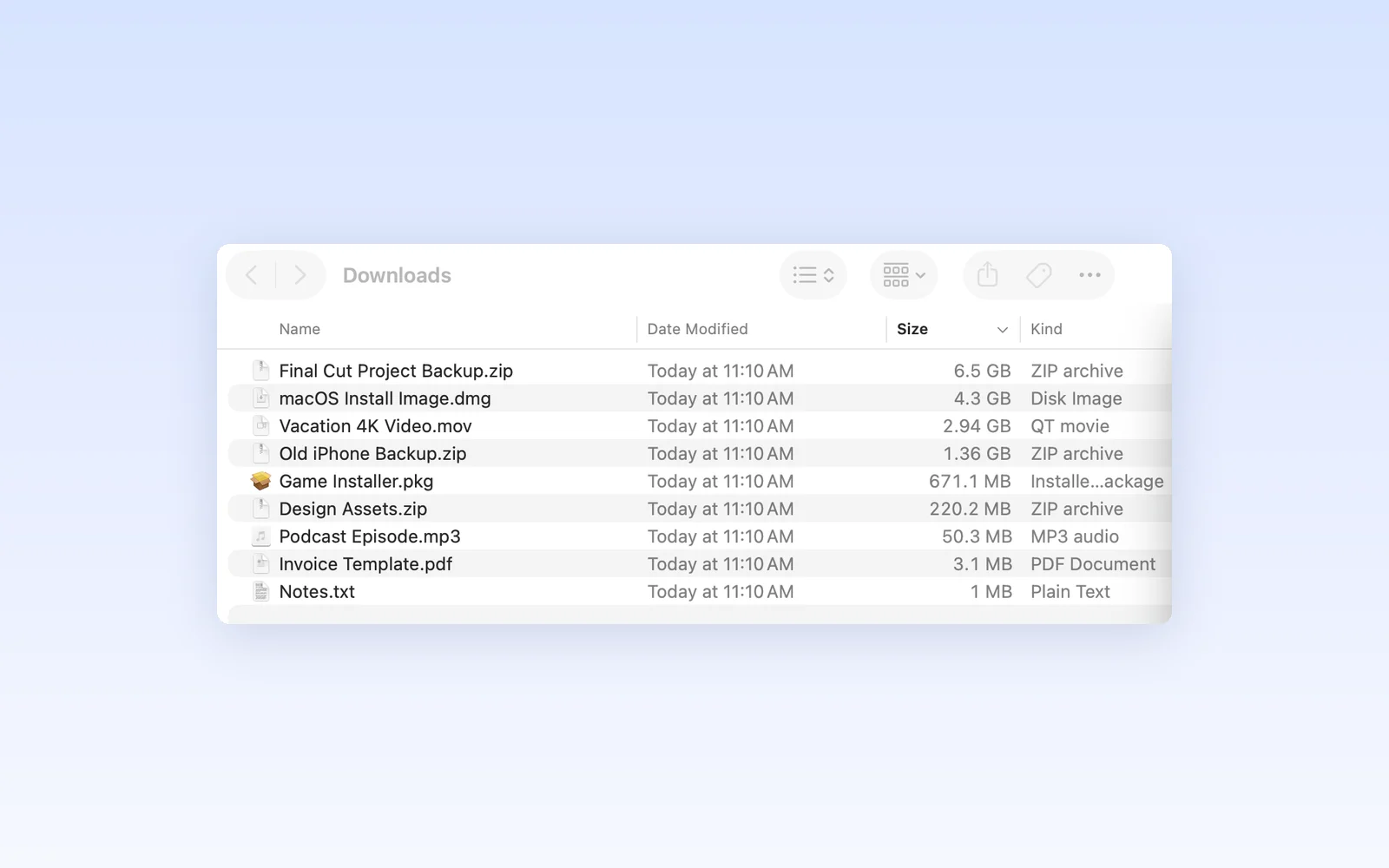
Apple explains sorting and showing columns in Finder, along with Get Info and the path bar.
Check what a file is before you remove it. Open an old project to see whether you still need its source files and whether you have another copy. Two folders with the same name can belong to different projects or apps, so keep an eye on the path.
For removal steps, use our Mac storage cleanup guide. If you're trying to get an installation or copy working right now, the not enough disk space guide covers that situation.
Storage settings and Finder work well when you've found a likely culprit. If you're still opening folder after folder to find it, comparing their sizes on a map can save you some of that clicking.
3. See your disk in one picture with Crufti
Crufti is our Mac uninstaller and leftover cleaner on the App Store. One scan in its Space tab draws your startup disk, or just your Home folder, as blocks sized by disk usage. You can spot the biggest items at a glance, then open folder blocks to see what's inside, without clicking through Storage categories and Finder folders one at a time. Color bands show what kinds of data each folder holds, including Library. Open an unwanted app's block in /Applications and Cleaner lets you review it with its matched leftovers, then move your selection to the Trash with Undo.
Choose Home Folder or Whole Disk
Choose Home Folder when you're looking through your own downloads, projects, and app data. Choose Whole Disk when you want to include locations elsewhere on the startup disk. Whole Disk doesn't include external drives. List and Map show the same scan results, so you can switch views without measuring again.
To run a Whole Disk scan:
- Open Crufti and select the Space tab.
- Choose Whole Disk at the top.
- On first use, click the access button for your startup disk. Crufti opens the standard macOS file panel at the disk's root; leave it there and click Grant Access.
- Click Measure Whole Disk and let the measurement finish.
- Switch from List to Map.
- Open the Applications folder block to compare your installed apps.
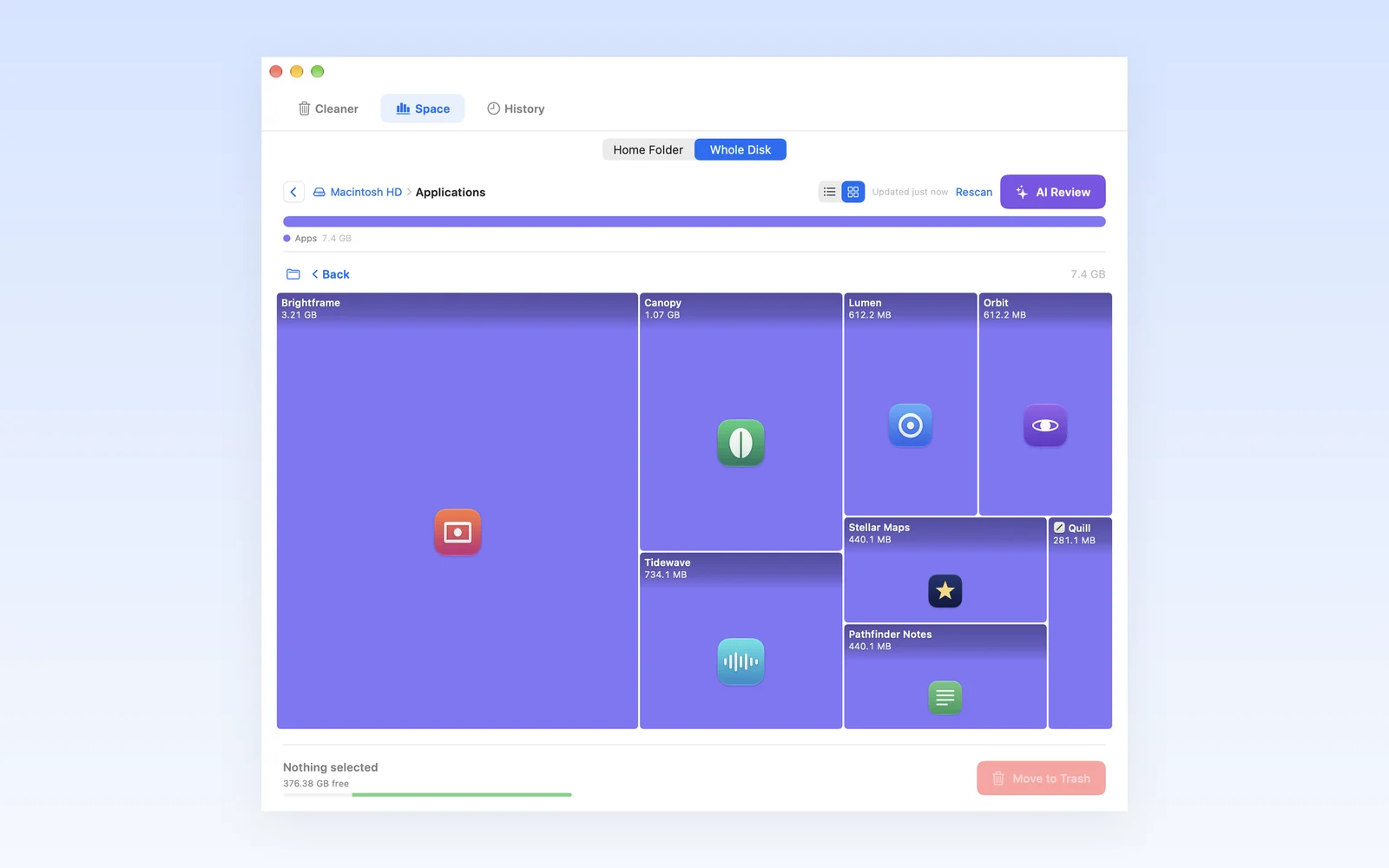
Here, Applications is open in Whole Disk Map. Each app has a block sized by disk usage, with its own icon. These screenshots use demo files and apps.
A Whole Disk measurement can take minutes. It runs only when you click Measure Whole Disk or Rescan, so click Rescan when you want fresh results after making changes.
Follow the largest folder blocks
A big Downloads block might be one old installer or lots of smaller files. Click the folder to see its contents, then keep opening the biggest blocks until you reach files you recognize. Hover over a block for details without opening it.
A folder's color bands show the kinds of content inside it: your files, app data, caches, leftovers, apps, and macOS files. In this Home Folder view, you can see several kinds of data inside Library before you open it.
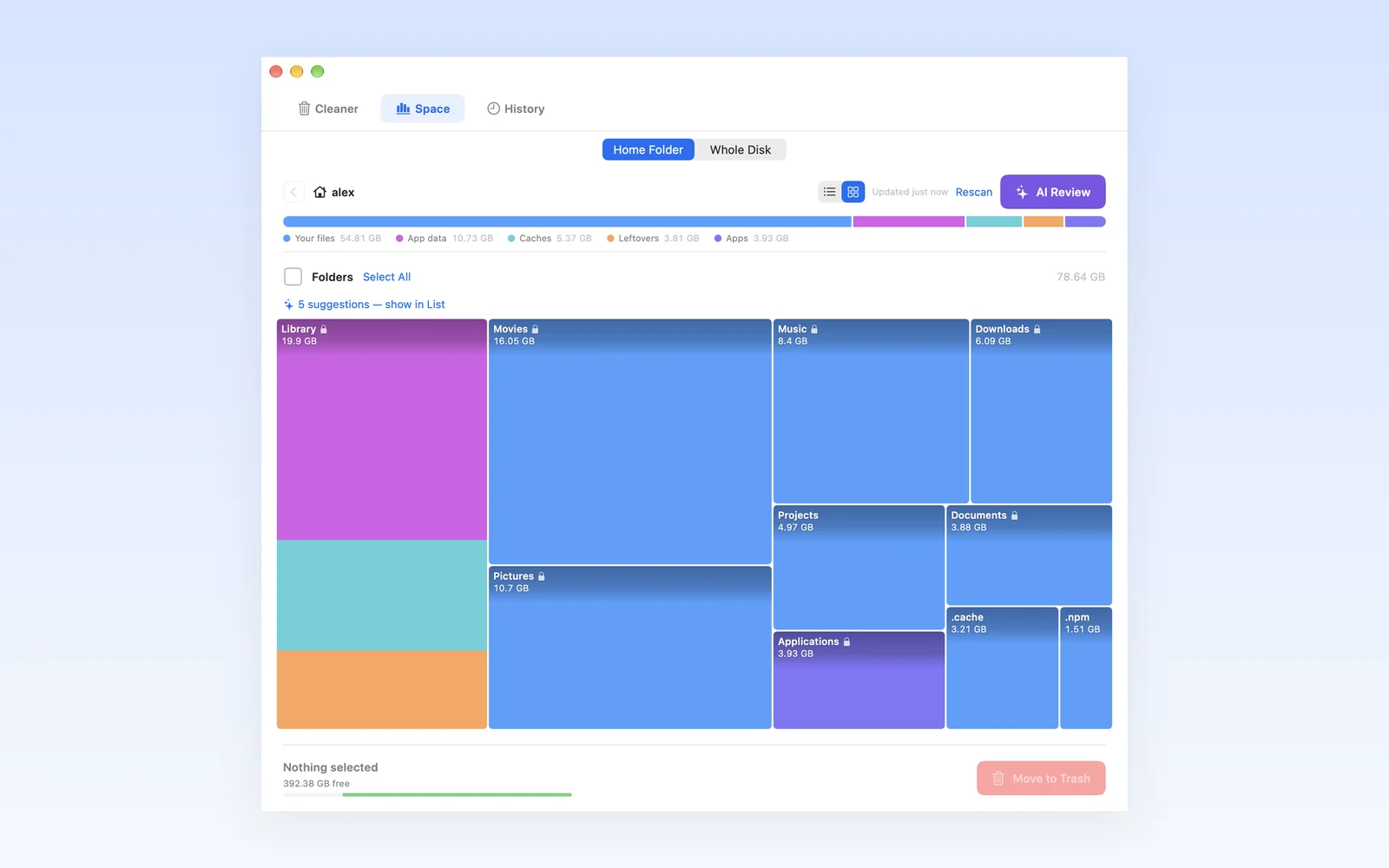
In Map view, Delete or the back button takes you up a folder. If you want to select a removable folder, use its checkbox; clicking the folder itself opens it. You can switch to List whenever you'd rather review rows.
Why some items don't appear in Map
Crufti's Map view groups small items into summary tiles to keep it readable. Items measured at zero bytes have no area to draw, so they don't get individual blocks. Switch to List when you want to inspect listed zero-byte entries.
Why Crufti's total differs from Storage settings
If you're comparing Crufti's total with Storage settings, the numbers can differ. Crufti measures allocated disk space for the items it can read and notes unreadable folders.
Apple's Disk Utility guide explains that available space can include purgeable space, which macOS can reclaim when needed. That available-space figure and the files Crufti measures aren't interchangeable totals.
Review files and app leftovers before removal
Once you've found a large file or app, check what you'd lose by removing it. With app data, find out which app owns it and what it stores there before you tick anything.
Outside your Home folder, Crufti only measures. The exception is an app in /Applications: opening it takes you to Cleaner, where you can review the app and its matched leftovers together before confirming removal.
An app block shows the app bundle's size; Cleaner checks for its leftovers in ~/Library. See why deleted Mac apps leave files behind for those locations.
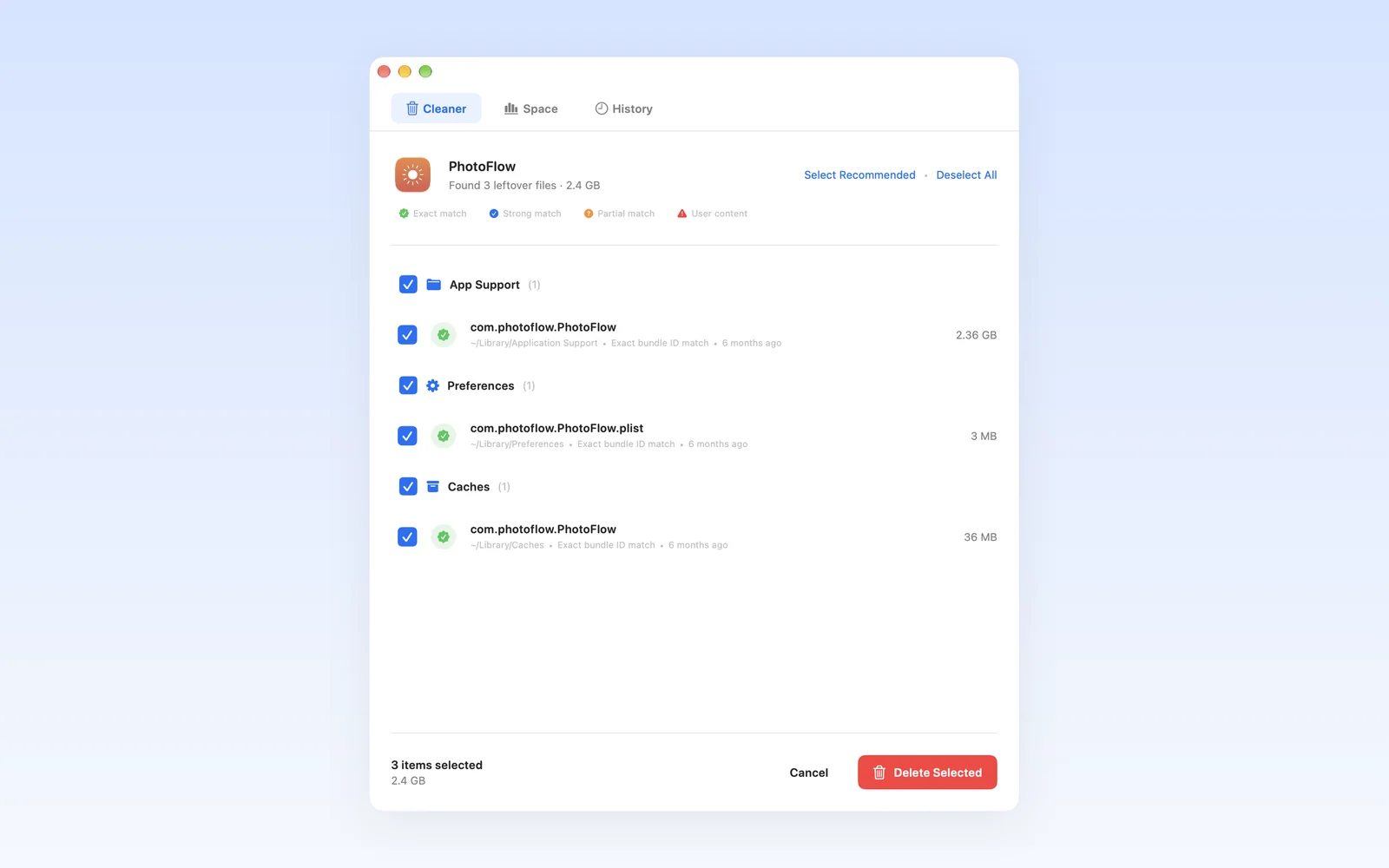
Review the matched files in Cleaner and choose what you want to remove before you confirm. Crufti refuses to uninstall Apple or built-in macOS apps.
Inside Home, folders used by macOS, Apple's own app data, and protected data from installed apps stay locked. Allowed removals go to Trash and are recorded in History with Undo. At the Whole Disk root, System & Other is an information tile; you can't select or remove it.
Leave unidentified files unselected. Apple notes that moving a file to Trash doesn't free its space until you empty Trash. Review the contents before emptying it.
If Downloads and project archives keep piling up, try the routine in MacBook storage management.
Start with Storage settings and Finder if you want to use the tools you've already got, or choose Crufti to compare folders on a map and review apps with their leftovers. Crufti is on the Mac App Store for $9.99 in the US, paid once with no subscription.