How to Completely Uninstall Mac Apps: A 2026 Guide
· macos, uninstall, how-to
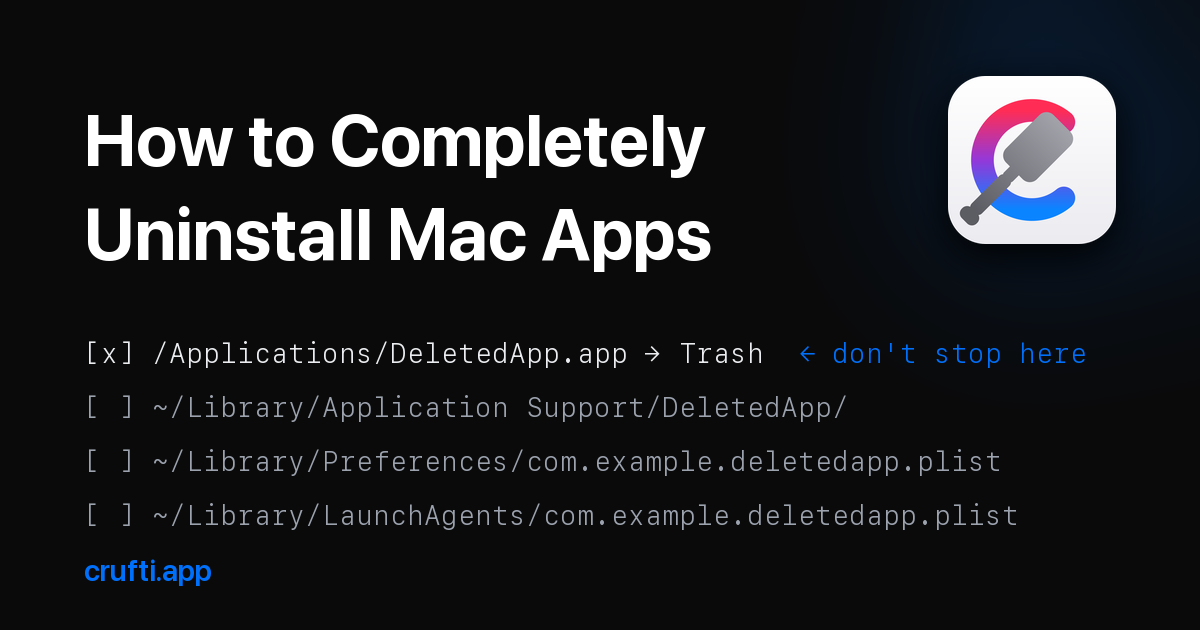
Apple refreshed its official uninstall instructions on June 8, 2026, and the method is still the one you already know: drag the app to the Trash. What the page doesn't say is that this removes only the .app bundle, while everything the app wrote to ~/Library stays on your disk. We covered the mechanism behind that in why deleted Mac apps leave files behind. This guide is the practical half: the complete, five-step manual uninstall, every step backed by an Apple source and verified on macOS 26.4.1 (Tahoe). It also covers which Terminal commands from other guides you should ignore, including one that doesn't exist.
Key Takeaways
- Trashing an app removes the
.appbundle only. A complete uninstall has five steps.- Apple's uninstall page, updated June 8, 2026, never mentions leftover app data.
- Grab the app's bundle identifier before you delete it. Every later step searches by it.
- macOS ships no
uninstallcommand, despite what two top-ranking guides tell you to type.
Why isn't dragging an app to the Trash enough?
Because macOS deletes the bundle and nothing else. Apple's developer documentation directs every app to keep its working data in ~/Library folders like Application Support, Caches, and Preferences (File System Programming Guide, retrieved June 2026), and deleting the bundle never touches those folders.
The contrast with Apple's other platforms makes the gap obvious. On iPhone and iPad, Apple documents two tiers of removal: offloading, which keeps an app's documents and data, and deleting, which "removes the app and its related data" (Apple Support, How to check the storage on your iPhone and iPad, December 2025). The Mac has never offered that second tier. There's no prompt, no checkbox, no setting. As of June 2026, Apple's support page Delete or uninstall apps on Mac describes the Finder drag and stays silent about app data entirely.
So "completely" is a job macOS leaves to you. The full version takes five steps, ordered so each one makes the next easier.
Step 1: Note the bundle identifier, then check for an uninstaller
By the end of this step you'll have the one string that makes the rest of the cleanup precise: the app's bundle identifier, something like com.spotify.client. Every leftover file you'll hunt in steps 3 to 5 is named after it. Get it while the app is still installed, because it's harder to reconstruct afterward. Open Terminal and run:
osascript -e 'id of app "Spotify"'
Swap in your app's name. Write down the result.
Then check whether the developer ships an uninstaller. Apple's own uninstall page recommends this route first, because a vendor uninstaller knows about data the app stored outside its bundle. Look inside the app's folder in /Applications, on the original .dmg you downloaded, or on the developer's site. In practice, uninstallers mostly come with software that installs system-level pieces: VPNs, antivirus tools, audio drivers, the big creative suites. If you find one, run it, and treat steps 3 to 5 as a verification pass rather than a cleanup.
Step 2: Quit the app and move it to the Trash
By the end of this step, the app itself is gone. Quit it first with Cmd-Q, and check the menu bar for a companion icon, since a running app can rewrite files while you're deleting them. Then open the Finder, go to the Applications folder, and drag the app to the Trash, or select it and choose File > Move to Trash. That's the entire sanctioned method in both Apple's support page and the macOS Tahoe User Guide (retrieved June 2026).
If you're looking for the old Launchpad jiggle-and-X routine, it's gone. macOS Tahoe replaced Launchpad with an Apps view in the Dock in September 2025 (Macworld, What happened to Launchpad in macOS Tahoe?, 2025), and Apple's documentation for the Apps view doesn't cover deleting anything. The Finder route is what's left, and it works the same for App Store apps and downloaded apps alike.
One deliberate omission: don't empty the Trash yet. Apple's page ties emptying to permanently reclaiming space, not to completing the uninstall. A full Trash is your undo button for the next two steps.
Step 3: Remove the app's leftovers from ~/Library
This is the step every other guide treats as optional and the reason this guide exists. By the end of it, the app's data is actually gone. In the Finder, hold Option, open the Go menu, and choose Library. Then check these folders for files and folders named with the bundle identifier from step 1:
Application SupportCachesPreferencesContainersandGroup ContainersSaved Application StateLogsLaunchAgents,WebKit, andHTTPStorages
The full table of what lives where is in our first article, along with the reason these files persist: Apple's documentation treats keeping them as the correct default, to the point that group containers are never removed by the system at all.
Search by the bundle identifier, not the app's name. A name search for "Spark" happily surfaces files belonging to Sparkify or any other app containing those letters, and that's how manual cleanups delete a neighbor's data. Move matches to the Trash rather than deleting them outright, and leave the Trash alone for a few days in case something you still use complains.
One warning from Apple itself: its UserDefaults documentation cautions against modifying the preferences system's files directly on disk (retrieved June 2026). Moving a deleted app's .plist to the Trash is fine. Editing live preference files while apps are running is not.
Step 4: Check the package receipt with pkgutil
Skip this step unless the app arrived as a .pkg installer rather than a drag-to-Applications download. If it did, macOS recorded a receipt: a bookkeeping entry listing every file the installer dropped, including ones outside ~/Library, and it persists no matter what you delete later. The pkgutil manual page is explicit that receipt data is stored separately and that forgetting a receipt doesn't touch the installed files (pkgutil(1) manual page, macOS, retrieved June 2026).
pkgutil --pkgs | grep -i appname     # find the app's receipt
pkgutil --files com.example.pkg.id   # list what that package installed
sudo pkgutil --forget com.example.pkg.id   # remove the receipt only
The receipts themselves are tiny, so forgetting them is housekeeping, not space recovery. The real value is --files: because the receipt survives deletion, you can run it before or after trashing the app and still get a complete map of what to clean up, straight from the system's own records. On the Mac we tested, pkgutil --pkgs still listed receipts from installers that left the machine years ago. Yours will too.
Step 5: Clear login items and background agents
One leftover class does more than occupy disk. A stray entry in ~/Library/LaunchAgents asks macOS to run something at every login, and it keeps asking after the app is gone. This step makes sure nothing connected to the deleted app ever launches again. Apple's Daemons and Services guide documents these as standalone property lists in LaunchAgents and LaunchDaemons folders, separate from the app bundle (retrieved June 2026).
Open System Settings > General > Login Items & Extensions and remove or disable anything belonging to the deleted app (macOS Tahoe User Guide, retrieved June 2026). You may have already trashed the matching .plist files in step 3; this pass catches what the Settings UI tracks separately, including items installed under /Library for all users.
Apple knows this problem class exists, by the way. macOS 26 added a prompt when an app's background tasks keep running after you quit it (Apple Platform Deployment, retrieved June 2026). It's the first time the OS surfaces orphaned background activity on its own. Deletion leftovers still get no such prompt.
Which Terminal uninstall commands are actually safe?
Short answer: the read-only ones. The most surprising thing we found while researching this guide is that two of the top-ranking uninstall articles, which we're deliberately not linking, tell readers to run sudo uninstall file:///Applications/AppName.app. We checked on macOS 26.4.1: there is no uninstall command. It's not in /usr/bin or /usr/sbin, which uninstall returns nothing, and no Apple manual page or document describes it. The command fails on a stock Mac, which suggests nobody ran it before recommending it.
| Command | What it does | Verdict |
|---|---|---|
pkgutil --pkgs / --files | Reads receipt records | Safe, read-only |
osascript -e 'id of app …' | Looks up a bundle identifier | Safe, read-only |
defaults delete com.example.app | Clears an app's preferences | Fine, but trashing the .plist is more visible |
sudo uninstall file://… | Nothing. The command doesn't exist | Skip |
sudo rm -rf … | Deletes instantly, bypassing the Trash | Skip. One typo, no undo |
The rm -rf advice deserves its own warning. It works, which is the problem: it deletes immediately, with root privileges, with no Trash to recover from. Every removal in this guide goes through the Trash instead, and that's deliberate. The Finder is slower than a shell one-liner. It's also forgiving.
The five-step uninstall, done for you
That's the complete manual method: uninstaller check, bundle, ~/Library leftovers, receipts, login items. It works, and now you know why each step exists. It's also twenty minutes of careful matching per app, which is exactly the part worth automating.
Crufti does the matching for you. Drop in an app and it scans the ~/Library locations from step 3, rates every candidate file by how confidently it matches the bundle identifier, and deselects anything risky by default. You review the list, deletions go to the Trash, and a local manifest lets you undo. It's $9.99 once on the Mac App Store, sandboxed, with no network access. The full scan list is on the homepage.
Frequently asked questions
More answers live on the Crufti FAQ.
Do I have to empty the Trash to finish uninstalling an app?
No. The app stops being installed the moment the bundle leaves /Applications. Apple's uninstall page connects emptying the Trash to reclaiming disk space, nothing more. Keeping the Trash full for a few days after a cleanup is cheap insurance.
How do I delete apps now that Launchpad is gone?
Through the Finder. macOS Tahoe replaced Launchpad with the Apps view in September 2025, and Apple's documentation for it includes no delete gesture. Apple's current instructions, updated June 8, 2026, describe one method: drag the app from Applications to the Trash, for App Store and non-App Store apps alike.
Does deleting a Mac App Store app remove its container?
No. The container at ~/Library/Containers/<bundle id> stays after the app is deleted. Apple documents data removal as part of app deletion on iOS, but no equivalent statement exists for the Mac. The first article in this series covers why the system is built that way.
How do I find the bundle identifier of an app I already deleted?
Look at the leftovers themselves. Folder names in ~/Library/Containers and file names in ~/Library/Preferences are bundle identifiers, so the orphan is usually self-labeling: a com.developer.appname folder with no matching app installed. Crufti's orphan scan automates exactly this comparison against your installed apps.
Are Mac cleanup apps safe to use?
The honest answer: it depends entirely on how they match files. Name-based substring matching can flag another app's data, the Spark-versus-Sparkify problem from step 3. Look for exact bundle-identifier matching, a review screen before anything is removed, and deletion that goes to the Trash instead of bypassing it.
Sources
- Apple Support, Delete or uninstall apps on Mac, updated June 8, 2026. Retrieved June 2026.
- Apple, macOS Tahoe User Guide, Install and uninstall apps from the internet or a disc on Mac. Retrieved June 2026.
- Apple, macOS Tahoe User Guide, View and open apps on Mac. Retrieved June 2026.
- Apple Support, How to check the storage on your iPhone and iPad, December 19, 2025. Retrieved June 2026.
- Apple Developer, macOS Library Directory Details, File System Programming Guide. Retrieved June 2026.
- Apple Developer, UserDefaults. Retrieved June 2026.
- pkgutil(1) manual page, macOS, mirror at ss64.com. Retrieved June 2026.
- Apple Developer Archive, Creating Launch Daemons and Agents, Daemons and Services Programming Guide. Retrieved June 2026.
- Apple, macOS Tahoe User Guide, Change Login Items & Extensions settings on Mac. Retrieved June 2026.
- Apple Platform Deployment, Manage login items and background tasks on Mac. Retrieved June 2026.
- Macworld, What happened to Launchpad in macOS Tahoe?, September 18, 2025. Retrieved June 2026.